Expense Tracker Template
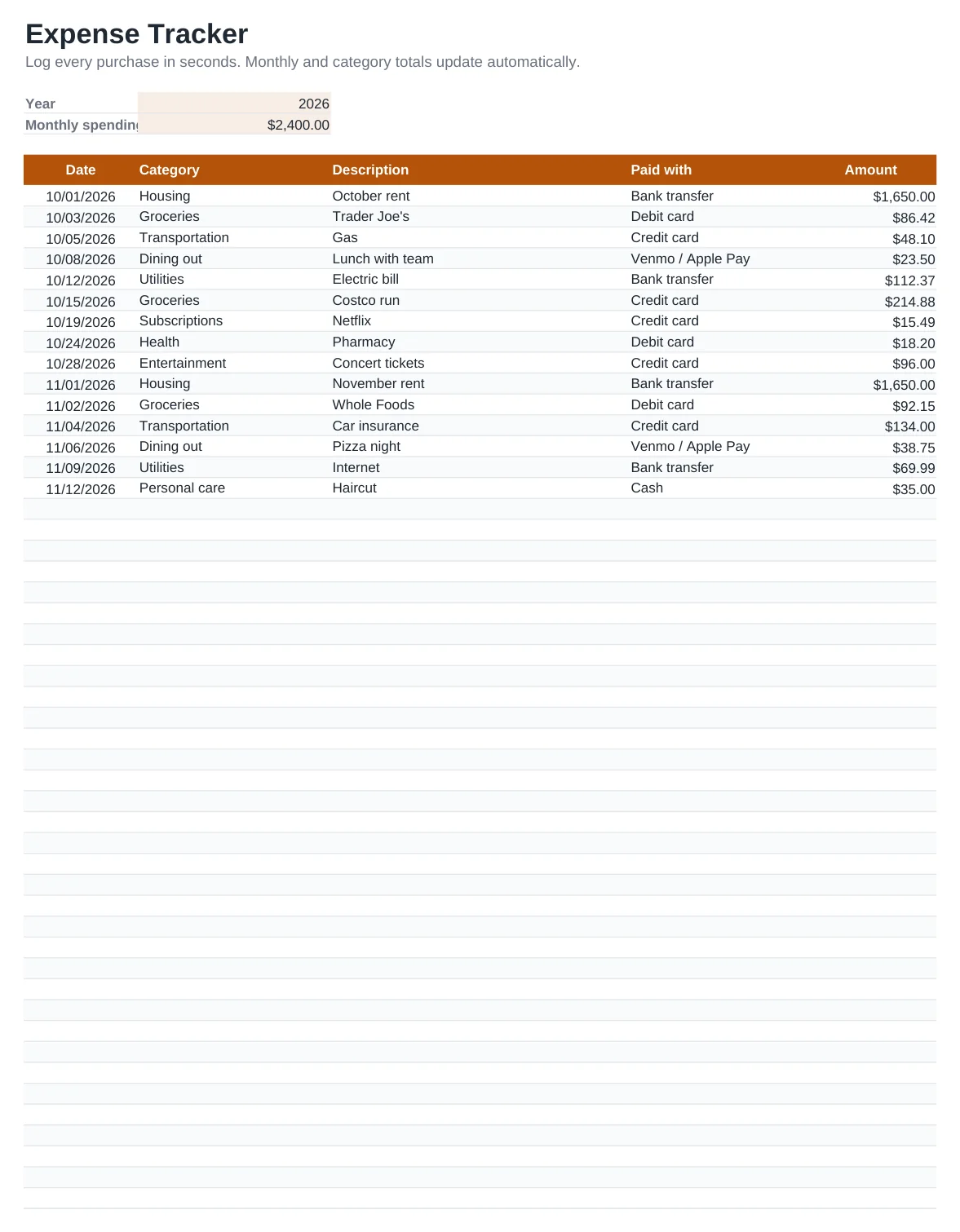
The easiest way to spend less is to see where your money actually goes. This expense tracker is a simple log: one row per purchase, with the date, category, description, how you paid and the amount. Everything else is automatic.
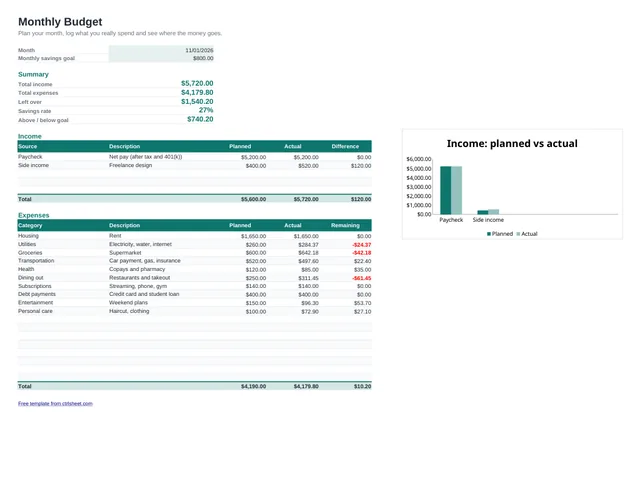
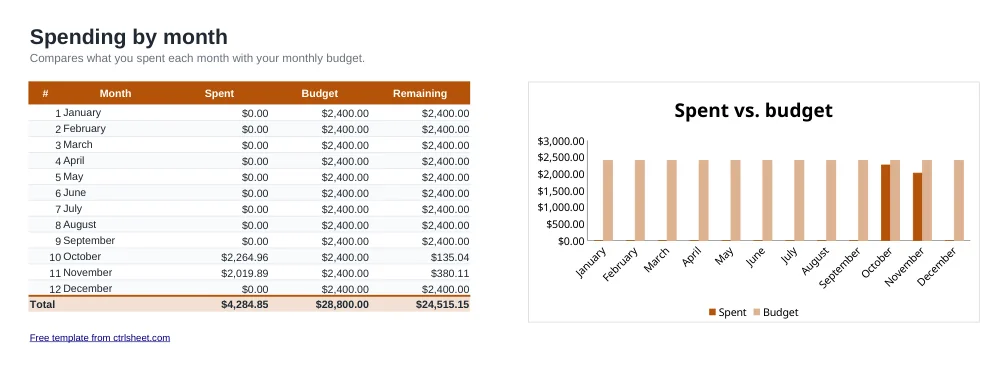
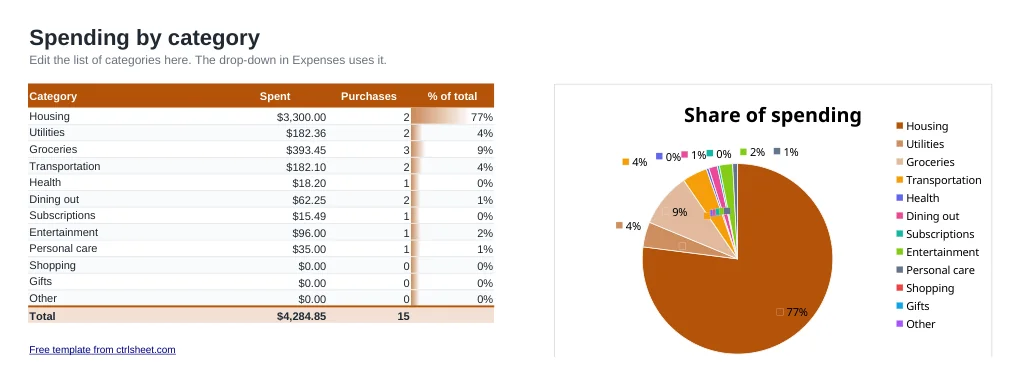
A monthly view compares what you spent with your budget, and a category view shows your biggest spending areas with a chart. It works for personal spending, a household, or tracking business expenses for taxes.
What's included
- Fast daily log with category and payment method drop-down lists
- Monthly totals for the whole year compared with your monthly budget
- Spending by category with number of purchases, share of total and a pie chart
- Room for 80 entries per sheet, and you can insert more rows at any time
- Works in Excel, Excel for Mac, Google Sheets and LibreOffice. No macros
How to use it
- Set the year and your monthly spending budget at the top of the Expenses sheet.
- Adjust the category list on the By category sheet if needed.
- Log each purchase with its date, category, payment method and amount.
- Open By month to see how each month compares with your budget.
- Use By category to find the areas where cutting back would make the biggest difference.
Make tracking a habit
Log expenses the same day. It takes less than a minute, and you will not forget cash purchases or small card payments that add up quickly.
Export your bank or credit card transactions as CSV once a month and paste them in. It is a quick way to catch anything you missed.
If you are self-employed, keep business expenses in their own category. It makes Schedule C deductions much easier to total at tax time.
Frequently asked questions
Is the expense tracker free?
Yes. Download it, edit it and use it as much as you like. No sign-up or payment is needed.
Can I use it on my phone?
Yes. Upload the file to Google Drive and open it in the Google Sheets app, or use the Excel mobile app. You can add expenses on the go.
How do I track a new year?
Save a copy of the file, clear the entries on the Expenses sheet and change the Year cell. The monthly summary will follow the new year.
Can I add my own categories?
Yes. Edit the list on the By category sheet. The drop-down on the Expenses sheet updates automatically.